Library Recycle Bin
Recover deleted folders and content via the self-service Library Recycle Bin. The deleted folders and content can only be restored by users with "Manage" or "Owner" content permissions or the “Manage All Library Folders and Content” application permission. The following information can be viewed from the Library Recycle Bin page: Type, Name/Title, Folder Path, Deleted on, Deleted by, # of Folders, and # of Files.
Note: The "RecycleBinTimeframe" global setting specifies the number of days that deleted folders and content will be preserved in the Library Recycle Bin where they can be recovered. The default is 14 days.
 Work with the Library Recycle Bin grid
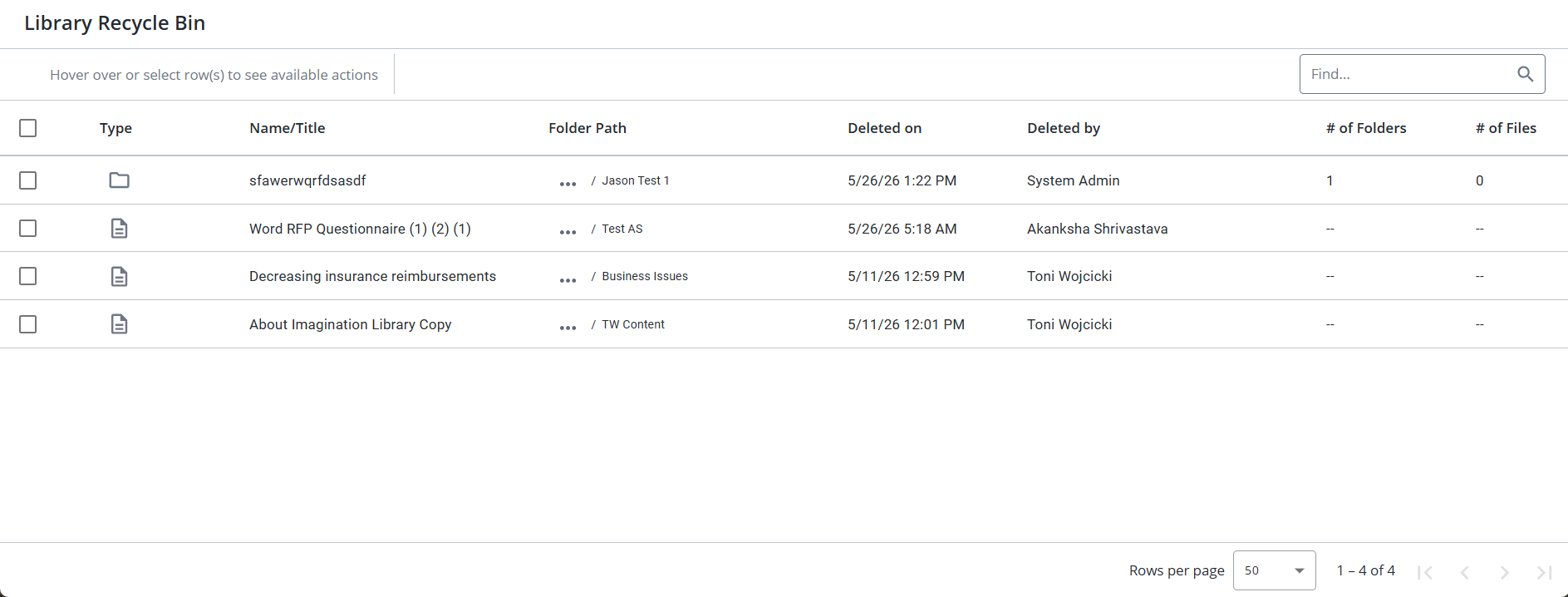
The Library Recycle Bin grid. Click to enlarge.
Search
- To search for a file or folder, enter text into the search box at the top right of the grid, and click the Search
 icon or Enter.
 - To re-display all files and/or folders in the grid, delete the entire entry in the box by clicking the X.
Filter the grid
Use the advanced filters to display specific records quickly on the grid.
- Hover over the column header until you see the Filter
 icon appear.
 -
Click the Filter
icon to display the following dialog to set filtering parameters:- Text Columns: Select either Contains All, Contains Any, Matches Any, Matches Exactly, Starts with, Ends with, Is Empty, Is Not Empty, or Does Not Contain from the Operator dropdown menu. The Contains All, Contains Any, Does Not Contain, and Matches Any operators allows you to enter more than one value by pressing the Enter key after each value. The Starts with and Ends with operators allow you to enter a text value to find. The Is Empty and Is Not Empty operators do not require a value.
- True/False Columns: Select either the Is True or Is False radio button.
- Numeric Columns: Select either Equals, Greater than, Less than, Greater than or equal to, Less than or equal to, Not Equal to, Between, Matches Any, Is Empty, or Not Empty from the Operator dropdown menu. The Between operator shows two fields for the starting and ending values of the range you want to find. Is Empty and Not Empty operators do not require a value. All other operators require a single value.
- Date Columns: Select either On, After, Before, Between, Is Empty, or Not Empty from the Operator dropdown menu. The Between operator shows two fields for the starting and ending dates of the range you want to find. Is Empty and Not Empty operators do not require a value. All other operators require a single value.
- Click Apply.
Tip: To clear the filter, click the Clear Filter  icon in the header, and then click Clear. You can also click out of the filter dialog to close it.
Sort columns
- To sort columns chronologically or alphabetically, click the column header name. The records will display in ascending order.
- To switch from ascending to descending order, click the selected column header name again.
Navigate pages
- At the bottom right of the grid, use the page scrolling controls (First page, Previous page, Next page, Last page) to move between pages of records in the grid.
Display grid rows
- At the bottom right of the grid, use the "Rows per page" dropdown menu to select the number of rows that you want to display on the grid.
Select grid rows
- Select your desired grid row(s) using the checkboxes or by clicking the rows and using CTRL+CLICK or SHIFT+CLICK to select multiple records.
Default v Compact column mode
You can switch between the default and compact column modes. Unless updated, the grid will remain in default mode. Compact mode shortens the height of the grid rows.
- To switch between the modes, go to My Preferences within the header Profile menu and select the Default and/or Compact radio buttons.
Restore deleted folders and/or files
- Click the More Options
 menu to the right of the library Search bar and select Recycle Bin from the dropdown menu.
 - Hover over the desired deleted item and click the Restore
 icon or select multiple items and click the Restore Selected
  icon at the top of the grid.
Tip: You can access the Recycle Bin immediately after deleting content by clicking the Go To Recycle Bin button on the confirmation dialog.
Note: If additional items are deleted or restored by other users, click Refresh to update the recycle bin.
Caution: Content or folders that are flagged as deleted can be recovered where they existed. If that content/folder was moved or unassigned during the delete, it is not returned to its original location.